Google Tag Manager Setup from Scratch: 2026 Guide
One container instead of a dozen scripts in your code: GTM manages GA4, Google Ads, and Meta Pixel without a developer. I walk through installation, Consent Mode v2, triggers, dataLayer, and debugging — everything you need for working analytics in 2026.


I will look at your site and answer your questions on the topic of this article. 30 minutes, no slide decks, no pressure.
Book a consultationEvery counter, pixel, and tracking script hardcoded into your site is a future headache. Something gets duplicated, something is forgotten and never removed, something slows down page load — and every little edit requires a developer.
Google Tag Manager solves this problem: one code snippet on the site, and from then on you add, change, and disable all your tags from a web interface in minutes.
Over 18 years of work we have implemented GTM on hundreds of projects — from landing pages to e-commerce stores with tens of thousands of pages. This guide is the distilled version of how to set it up properly in 2026: the container, the GA4 connection, Consent Mode v2, typical tags, triggers, dataLayer, and debugging.
In short: Google Tag Manager (GTM) is a free tag management system: you place the container code on your site once, then add GA4, Google Ads, Meta Pixel, and any other scripts through a web interface, with no code edits. For businesses with an EEA audience, GTM must be paired with Consent Mode v2 via a certified CMP banner — otherwise Google will not accept your advertising data.
What Google Tag Manager Is and Why You Need It
Google Tag Manager is a free Google tool that lets you manage all tracking scripts (tags) on a website from a single interface. Launched in 2012, it is the de facto standard today: GTM is used by millions of websites worldwide, including most large e-commerce projects.
The logic is simple. One script lives in your site’s code — the container. Inside the container you create:
- Tags — what to execute (send an event to GA4, a conversion to Google Ads, an event to Meta Pixel);
- Triggers — when to execute it (page view, button click, form submission, scrolling to 75%);
- Variables — what data to pass along (page URL, button text, order value from the dataLayer).
What this means in practice:
- A marketer adds and edits tags on their own, without waiting in line for a developer.
- All scripts live in one place: you can see what works and who changed what and when (there is version history and rollback).
- Preview mode lets you test a tag before publishing — fewer broken datasets.
- Access can be split by role: a contractor can get edit-only rights without publishing permissions.
When you don’t need GTM: if you run a one-page site with a single GA4 counter and nothing else is planned, a direct Google Tag installation is enough. In every other case, the container pays for itself with the very first task.
Google Tag (gtag.js) or GTM: What to Choose in 2026
There is a lot of confusion here, so let me break it down.
Google Tag (gtag.js) is Google’s unified tag that sends data directly to GA4 and Google Ads. You get it when creating a GA4 property and can paste it into your site’s code without GTM at all.
GTM is a layer above that: a container that houses both Google tags and any third-party ones (Meta Pixel, TikTok, Hotjar, chat widgets, maps).
| Criterion | Google Tag (gtag.js) | Google Tag Manager |
|---|---|---|
| Installation | Code pasted into <head> manually | One container, then the interface |
| Third-party pixels (Meta, TikTok) | Each pasted into the code separately | Added from the template gallery |
| Custom events (clicks, forms, scroll) | Code only | Via triggers, no code |
| Versioning and rollback | No | Yes |
| Best for | A landing page with a single GA4 | Everyone else |
An important update: in 2026 Google is merging Google Tag and GTM. Ahead of Google Marketing Live 2026, the “Destinations” architecture was announced — Google tags inside a container become “destinations” of the container itself and load as a single JavaScript file, with no separate gtag.js loads per property. This speeds up the site and simplifies management. The upgrade is optional: existing containers keep working as before, and the update can be tested in preview mode and rolled back.
The practical takeaway: if you are choosing where to start, start with GTM right away. Google itself is moving toward the container becoming the single point of control for all tags.
Installing the GTM Container: Step by Step
- Go to tagmanager.google.com with your Google account and click “Create Account.” An account is usually a company; a container is a specific website.
- Enter the account name, country, container name (your site’s domain), and platform: Web (for websites), iOS/Android (apps), or Server (more on that below).
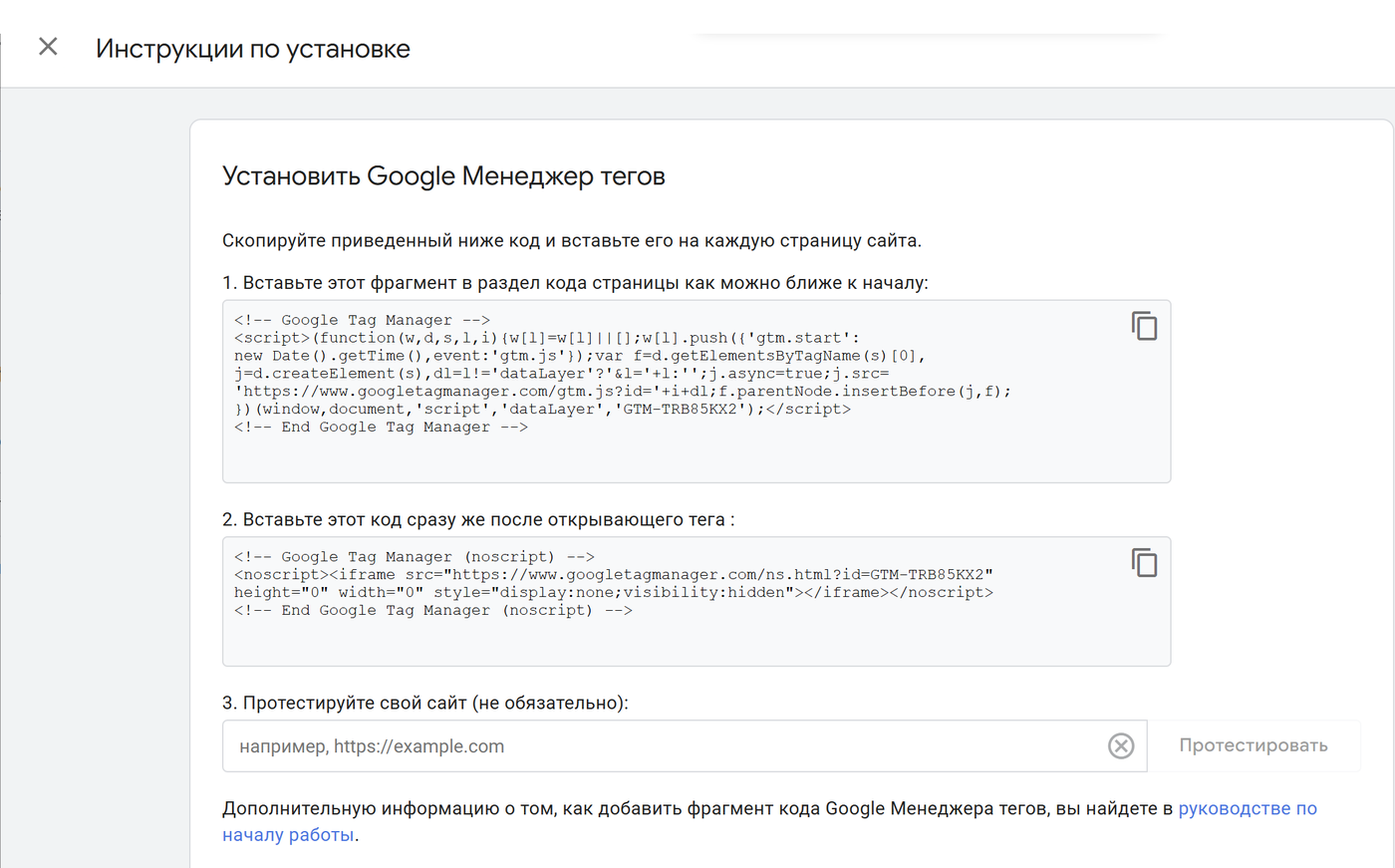
- Accept the terms of service — GTM will show you two code snippets.
- Paste the first snippet as high as possible in the
<head>of every page, and the second one right after the opening<body>tag.
If your site runs on a CMS, you don’t have to paste the code manually:
- WordPress — the Site Kit by Google or GTM4WP plugin;
- Shopify, Wix, Squarespace — native GTM-ID fields in the settings;
- OpenCart, Horoshop (a popular Ukrainian e-commerce platform), and similar systems — there is usually a “scripts in head” field in the admin panel.
Verifying the installation is easy: open your site, enable preview mode in GTM (the “Preview” button) — if Tag Assistant connects to the page, the container works.
One nuance from practice: do not install the container twice (for example, via a plugin and manually in the template). A duplicated container is the most common cause of doubled data in GA4 that we find in audits.
Connecting GTM to Google Analytics 4
GA4 is the first thing connected through GTM. The scheme is: one base configuration tag + separate event tags.
The Base GA4 Tag
- In GA4: Admin → Data Streams → your stream → copy the tag ID (G-XXXXXXX format).
- In GTM: Tags → New → choose the Google Tag type → paste the ID.
- Trigger — All Pages / Initialization.
- Save and verify in preview mode.
After publishing, GA4 starts receiving page views and automatic events (scroll, outbound link clicks, file_download — they are enabled in the stream’s Enhanced Measurement).

Events and Conversions
For everything GA4 does not catch automatically, you create a Google Analytics: GA4 Event tag:
- Tags → New → Google Analytics: GA4 Event.
- Enter the event name. If the event is on Google’s recommended list (purchase, generate_lead, sign_up), use exactly that name — GA4 builds prebuilt reports for those names.
- Add event parameters (for example, form_name, value, currency).
- Assign a trigger — a click, a form submission, a scroll (examples below).
To turn an event into a conversion, open Admin → Key Events in GA4 (Key Events is what conversions have been called since 2024) and flip the toggle next to the event. After that it can be imported into Google Ads as a conversion.
SEOquick experience. Properly configured events are not a formality — they are the foundation of ad optimization. In our case study on search campaigns for a network of psychologists we passed consultation-booking conversions to Google Ads and optimized bids against them: the result was a ROAS of about 7.4 and ad CTRs of up to 18%. Without correct tracking through GTM, that kind of optimization is impossible in principle.
Consent Mode v2: Without It, Your Advertising Data Doesn’t Work
If your site gets visitors from the EEA, the UK, or Switzerland (and Ukrainian businesses serving European markets always do), this section is mandatory.
Consent Mode v2 is Google’s mechanism for passing the user’s data-processing consent status to your tags. Since March 6, 2024, it has been mandatory for everyone using Google’s advertising features (remarketing, audiences, conversions) for EEA audiences — a requirement that grew out of the European Digital Markets Act. In 2025 Google tightened enforcement: sites with incorrect setups lost conversion data without warning. And starting June 2026, Google is consolidating consent management for all advertising data into a single control — a box-ticking setup no longer passes.
Consent Mode v2 operates with four signals:
ad_storage— advertising cookies;analytics_storage— analytics cookies;ad_user_data— consent to send user data to Google’s advertising systems;ad_personalization— consent to ad personalization (remarketing).
The last two are what “v2” actually is; they were added in 2024.
Basic or Advanced
- Basic: until the user gives consent, tags do not load at all. A refusal = zero data.
- Advanced: tags always load, but on refusal they send only anonymized cookieless pings. Based on those, Google models the missing conversions in GA4 and Google Ads (modeling requires roughly 700+ ad clicks per 7 days per country and domain).
For advertisers, Advanced is almost always the better deal: according to CMP providers, modeling recovers a noticeable share of conversions lost to refusals. Basic is chosen by projects with a conservative legal stance.
How to Implement It
The most reliable path is a certified CMP (Consent Management Platform) with a template from the GTM gallery: Cookiebot, CookieYes, Usercentrics, Iubenda, OneTrust, and others from Google’s list of certified CMPs. Starting in 2026, a certified CMP is a hard requirement for showing ads to EEA audiences — a home-made “We use cookies, OK?” banner does not count.
Implementation order:
- Sign up with your chosen CMP and configure the consent banner for your domain.
- In GTM, add the CMP tag from the template gallery with the Consent Initialization — All Pages trigger (this trigger fires before all others).
- In the container settings, enable Consent Overview and check that Google tags have built-in consent checks.
- In preview mode, verify: before the banner is clicked, tags wait; after consent, they fire, and signal statuses change from denied to granted (the Consent tab in Tag Assistant).
Typical Tags: GA4, Google Ads, Meta Pixel
Let’s go through the gentleman’s set found in 90% of commercial containers.
The GA4 Event Tag
Covered above: the Google Analytics: GA4 Event type, an event name from the recommended list, parameters, a trigger. This is the foundation of everything.
Google Ads: Conversion + Remarketing
For conversions:
- In Google Ads: Goals → Conversions → create a conversion action and get the Conversion ID and Conversion Label.
- In GTM: a Google Ads Conversion Tracking tag — paste the ID and Label; for e-commerce, pass the value and currency via dataLayer variables.
- Trigger — the same event as for the GA4 conversion (for example, a form submission or the “Thank you for your order” page).
- You also need a Conversion Linker tag with an All Pages trigger — it stores ad clicks in a first-party cookie.
For remarketing — a Google Ads Remarketing tag with an All Pages trigger (it also handles dynamic remarketing if you pass product IDs).
The alternative is importing Key Events from GA4 into Google Ads without a separate tag. That is simpler, but a conversion fired via the Ads tag is recorded faster and attributed more accurately, so for anything that means money (purchases, leads) we use the Ads tag.
SEOquick experience. In our case study of a jewelry e-commerce store we rebuilt conversion tracking and launched Performance Max with regional segmentation: ROAS grew from 2.8 to 5.1, impressions increased 5.6x, and in the Odesa region campaigns reached a ROAS of 116. Performance Max learns exclusively from the conversions you feed it — garbage in means a wasted budget out.

Meta Pixel (Facebook/Instagram)
There is no native Meta tag type in GTM, but there is an official template:
- Tags → New → search the Community Template Gallery → find Facebook Pixel (the facebookarchive/stape template).
- Paste the Pixel ID from Meta Events Manager.
- Base PageView — All Pages trigger; standard events (Lead, Purchase, AddToCart) — the same triggers as the corresponding GA4 events.
- If you work with the Conversions API, duplicate the events server-side (see the server-side GTM section) and pass an event_id for deduplication.
The same approach works for TikTok Pixel, LinkedIn Insight, Hotjar, and Microsoft Clarity — almost every service has a gallery template.
Triggers and Variables: Examples That Cover 90% of Tasks
A trigger defines the moment a tag fires; a variable is the data available at that moment. Before setting up click tracking, enable the built-in variables: Variables → Configure → check the Clicks, Forms, Scrolling, and Videos groups.
A Button or Link Click
Task: track clicks on the “Request a Call” button.
- Trigger: “Click — All Elements” (or “Just Links” for
<a>). - Condition: “Some Clicks” →
Click Textcontains “Request a Call”. It is more reliable to anchor to a CSS class or ID:Click Classescontainsbtn-callback— the button copy may get rewritten, but the class lives longer. - Tag: a GA4 event
click_callback(or straight togenerate_leadif the click opens a form).
The same pattern works for phone clicks (Click URL starts with tel:) and email clicks (mailto:).
A Form Submission
The standard Form Submission trigger catches a classic submit, but half of modern forms (AJAX, React, site builders) never fire it. Here is the working ladder, from simple to reliable:
- The Form Submission trigger, verified in preview mode — you might get lucky.
- A Page View trigger on the thank-you page URL
/thank-you/— if the form redirects. - Element visibility — an Element Visibility trigger on the CSS selector of the “Thanks, we’ll be in touch” message.
- The most correct path — ask the developer to push an event into the dataLayer on successful submission (code example below).
Scroll Depth
The Scroll Depth trigger → vertical percentages 25, 50, 75, 90. The tag is a GA4 event scroll_depth with the percent_scrolled parameter from the built-in Scroll Depth Threshold variable. Useful for a blog: you immediately see which articles are read to the end and which are abandoned above the fold.
Video Views
For embedded YouTube videos there is a ready-made YouTube Video trigger: it captures start, progress (10/25/50/75%), and completion. The tag is a GA4 event video_progress with the Video Title and Video Percent variables. If video is a conversion channel for you, this data shows exactly where viewers drop off.
dataLayer: The Minimum Your Developer Should Know
The dataLayer is a JavaScript array through which the site passes data to GTM. Everything that cannot be “caught” by a click or scroll (order value, product ID, login status) should go into it.
Two rules:
- The dataLayer declaration must appear in the code above the GTM snippet.
- Events are pushed with the
pushmethod and aneventkey — this is exactly what GTM’s Custom Event trigger listens for.
Example: a successful lead form submission:
window.dataLayer = window.dataLayer || [];
dataLayer.push({
  event: "form_submit_success",
  form_name: "callback",
  form_location: "header"
});
Example of an e-commerce purchase event (GA4 format):
dataLayer.push({
  event: "purchase",
  ecommerce: {
    transaction_id: "T-10345",
    value: 2840,
    currency: "UAH", // Ukrainian hryvnia
    items: [{ item_id: "SKU-123", item_name: "Autoclave 30L", price: 2840, quantity: 1 }]
  }
});
In GTM, the values are pulled with a Data Layer Variable: ecommerce.value for the order total, form_name for the form name. These variables are then plugged into the GA4, Google Ads, and Meta tags.
For e-commerce stores it makes sense to implement the full e-commerce layer right away, following the official GA4 schema: view_item, add_to_cart, begin_checkout, purchase. One task for the developer — and the entire funnel shows up in your analytics.
Debugging: Preview and Tag Assistant
The golden rule: no container version gets published without a check in preview mode.
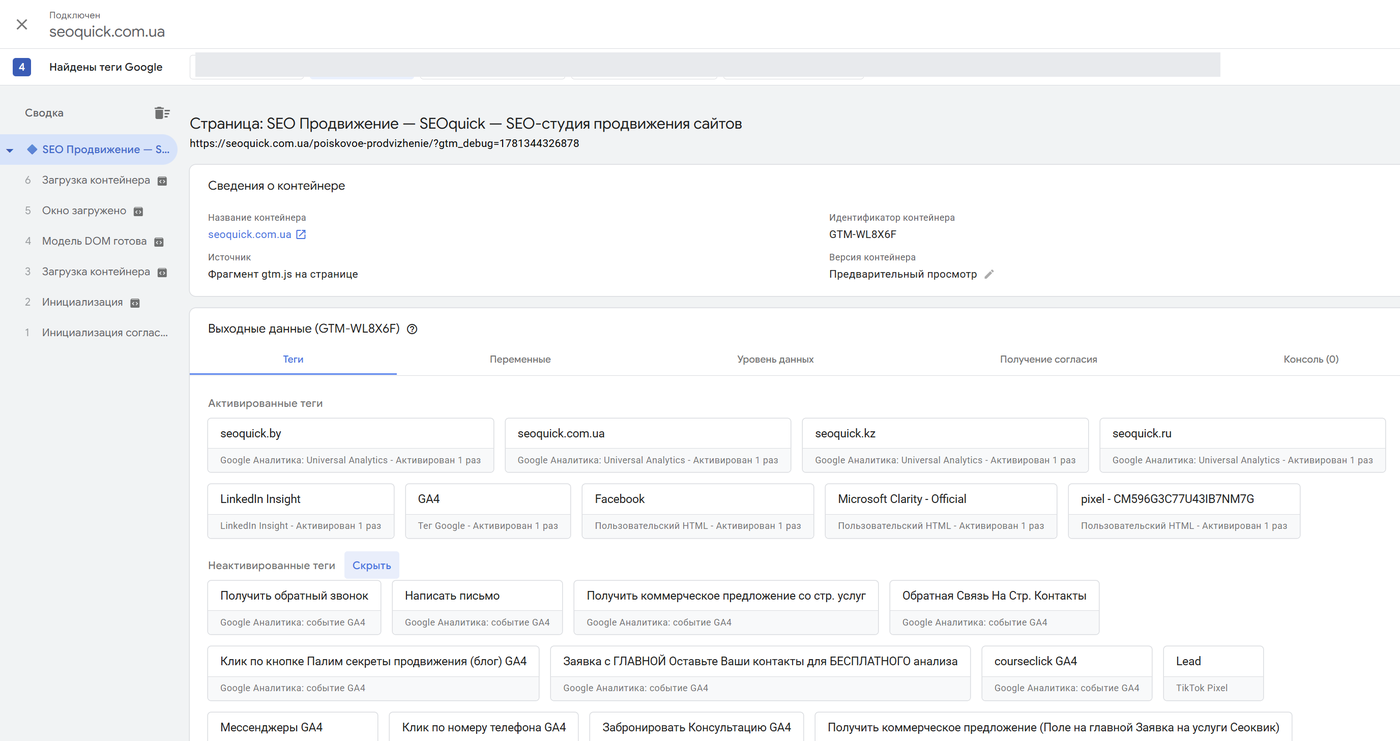
- Click “Preview” in GTM — Tag Assistant opens; enter your site’s URL.
- The site opens in a new tab with the debugger attached. Perform the target action: click the button, submit a test form.
- On the left in Tag Assistant is the event stream (Container Loaded, clicks, custom events). Clicking an event shows which tags fired (Tags Fired), which did not (Tags Not Fired), and why — which trigger condition was not met.
- The Variables and Data Layer tabs show variable values at the moment of the event — this is where you find errors like “the variable is empty because the developer named the field differently.”
- In parallel, keep the DebugView report open in GA4 (Admin → DebugView): events from preview mode land there in real time.
After the check — “Submit” with a meaningful version name (“Added Ads conversion tag on the lead form”). If something goes wrong in production, rolling back to the previous version takes two clicks: Versions → the one you need → Publish.
Server-Side GTM: When It Pays Off
Server-side GTM is a second container that runs not in the browser but on your server (a subdomain like gtm.site.com). The browser sends data to your subdomain, and the server then distributes it to GA4, Meta CAPI, and Google Ads.
What it gives you:
- data stops being cut off by ad blockers and Safari’s ITP restrictions (first-party context);
- the page loads faster — some scripts move from the client to the server;
- you control which data goes to vendors (PII filtering, GDPR hygiene);
- Meta Conversions API and other server-side integrations work as intended.
The price tag: Google Cloud plans for production loads start at around $120/month, specialized hosting services like Stape start at around $20/month, plus several hours of a specialist’s time for setup and event deduplication.
When it pays off: you spend a meaningful ad budget (from roughly $2,000–3,000/month), and losing 10–30% of conversions to ad blockers genuinely distorts campaign optimization; or you run e-commerce with Meta CAPI. When it doesn’t: a brochure site or a young project with a few hundred visits per day — start with a regular web container and add server-side once the numbers turn into money.
A separate bonus of accurate analytics in 2026: traffic now comes not only from classic search but also from AI answers — ChatGPT, Perplexity, Google’s AI Mode. To see it in your reports, set up custom channel groups in GA4 by referrer (chatgpt.com, perplexity.ai). How to get into those sources is covered in my guide to GEO: optimizing a website for GPT and the article on AI content and answers.
GTM Implementation Checklist
Save it and work through it in order:
- ☐ A GTM account and web container created, the code installed in head and body (or via a CMS integration) — no duplicates.
- ☐ Old “manual” counters removed from the site’s code (GA4, pixels) — everything moves into the container, otherwise data doubles.
- ☐ A CMP banner from Google’s certified list installed, the CMP tag on the Consent Initialization trigger.
- ☐ Consent Mode v2 verified in preview: all four signals change status on consent/refusal.
- ☐ The base Google Tag (GA4) on All Pages, data flowing into DebugView.
- ☐ Events configured around business goals: forms, phone/email clicks, and for a store — the e-commerce layer via dataLayer.
- ☐ Key Events enabled in GA4, conversions passed to Google Ads (conversion tag + Conversion Linker).
- ☐ Google Ads remarketing and Meta Pixel installed, events deduplicated.
- ☐ Everything verified in Preview/Tag Assistant and DebugView, the version published with a clear name.
- ☐ Container access granted by role, with the business owner holding admin rights (the container should belong to you, not your contractor).
- ☐ A week later — a control reconciliation: conversion counts in GA4, Ads, and your CRM match within a reasonable margin.
Conclusion
GTM in 2026 is not “a convenient wrapper for counters” — it is the central hub of your entire marketing analytics: GA4, Ads conversions, Meta, user consents, and server-side tracking all converge in one container.
The basic setup — container, GA4, a couple of events, a CMP banner — can realistically be done on your own in one day with this guide. The e-commerce layer, server-side, and event deduplication, however, are better done with real expertise: tracking errors are invisible to the eye, yet they feed garbage to advertising algorithms for months.
If you need help with analytics and advertising setup — contact us, we will look at your container and tell you honestly what is wrong with it.
FAQ
What is Google Tag Manager in simple terms?
It is a free “remote control” for your site’s scripts. You install the container code once, then add and configure GA4, ad platform pixels, and any counters through a web interface — no code edits and no developer. All changes are versioned and can be rolled back in two clicks.
How is GTM different from Google Analytics 4?
GA4 collects and displays user behavior data — it is an analytics system. GTM analyzes nothing: it delivers the GA4 counter and other tags to the site and decides when they fire. The standard stack: GTM installs GA4, GA4 measures, Google Ads optimizes against that data.
Is Consent Mode v2 mandatory if a site serves only one country outside the EEA?
Formally, the requirement covers EEA, UK, and Swiss audiences. But almost any website gets at least some European visitors, and privacy laws worldwide — including Ukraine’s personal data protection law — are converging on the GDPR model. If you use Google remarketing and audiences, implement Consent Mode v2 right away: it is insurance against losing your advertising data.
Does GTM slow down a website?
The container itself is lightweight and loads asynchronously. What slows down a site are the tags inside: a dozen heavy pixels will have the same effect regardless of how they are installed. GTM actually helps: you can delay heavy tags, and after upgrading containers to the Destinations architecture (2026), Google tags load as a single file instead of several gtag.js scripts.
Does a small business need server-side GTM?
In most cases — no. A server container costs money (hosting from ~$20/month plus setup) and pays off with significant ad budgets, when losing 10–30% of conversions to ad blockers distorts optimization, or when working with the Meta Conversions API. Start with a regular web container — you can migrate to server-side at any time.
How do I check that my tags work correctly?
Enable preview mode in GTM (Tag Assistant): perform the target action on the site and see which tags fired and why. In parallel, check DebugView in GA4 — events should arrive with the right parameters. Only then publish the container version.

Google Analytics 4: Setup and Configuration From Scratch (2026 Guide)
Step-by-step Google Analytics 4 guide: creating a property and data stream, installing the tag via gtag or GTM, key events, reports, Consent Mode v2, and AI traffic.
Read →
Google Ads Search Campaign: Setup from Scratch (2026)
Step-by-step Google Ads search campaign setup for 2026: account structure, Smart Bidding, keyword match types, RSA, negative keywords, conversion tracking.
Read →
20 Google Ads Mistakes That Burn Your Budget: A 2026 Checklist
20 common Google Ads mistakes — from negative keywords to Performance Max and Consent Mode v2. Each one explained with examples and a concrete fix.
Read →Want to apply this to your site?
We will review the current situation, find the first growth levers, and suggest a practical working format.